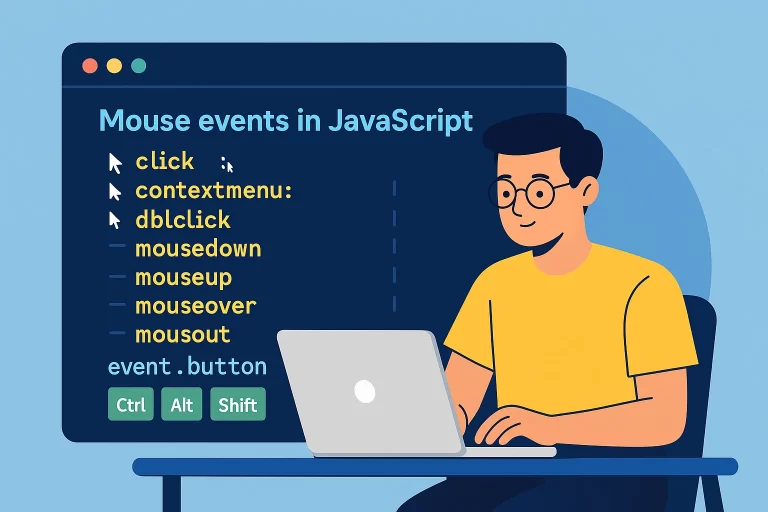
Mastering Mouse Events in JavaScript: Click, Right-Click, and Special Keys
JavaScript empowers web developers to create interactive experiences, and mouse events are a cornerstone of that interactivity. From clicks to right-clicks, double-clicks, and even tracking mouse movement, the mouse event object in JavaScript provides powerful tools to respond to user actions. In this article, we’ll explore key mouse events, how to handle them, and how to use the event object’s properties to detect specific mouse buttons and special key presses (like Ctrl, Alt, or Shift). We’ll include practical code examples, a live demo, and answers to common questions to make this both beginner-friendly and useful for seasoned developers.
Understanding Mouse Events in JavaScript
Mouse events in JavaScript are triggered when a user interacts with a webpage using their mouse. These events include click, dblclick, contextmenu (right-click), mousedown, mouseup, mouseover, and mouseout, among others. Each event carries an event object that contains properties like which mouse button was pressed or whether special keys (Ctrl, Alt, Shift) were held down during the event.
Let’s dive into some practical examples to see these events in action.
Core Mouse Events: Click, Right-Click, and Double-Click
We’ll start with the most common mouse events: click, contextmenu (right-click), and dblclick. Below is a simple HTML setup with a div that responds to these events and displays a message.
<div id="eventDisplay" onclick="eventHandler('Click')" oncontextmenu="eventHandler('Right Click'); return false;" ondblclick="eventHandler('Double Click')">Interact with me: Click, Right-Click, or Double-Click!</div>

<script>
function eventHandler(message) {
    document.getElementById('eventDisplay').innerText = message;
}
</script>
Note: The return false on the oncontextmenu event prevents the default browser context menu from appearing, allowing us to customize the right-click behavior.
Mouse Down and Mouse Up Events
The mousedown and mouseup events trigger when the mouse button is pressed and released, respectively. These are useful for detecting precise user actions, like dragging or custom button behaviors.
<div id="eventDisplay" onmousedown="eventHandler('Mouse Down')" onmouseup="eventHandler('Mouse Up')">Interact with me!</div>

<script>
function eventHandler(message) {
    document.getElementById('eventDisplay').innerText = message;
}
</script>
Try pressing and releasing the mouse button on the div above to see these events in action.
Mouse Movement: Mouse Over and Mouse Out
Mouse movement events like mouseover and mouseout are triggered when the mouse pointer enters or leaves an element. These are great for hover effects or tooltips.
<div id="eventDisplay" onmouseover="eventHandler('Mouse Over')" onmouseout="eventHandler('Mouse Out')">Hover over me!</div>

<script>
function eventHandler(message) {
    document.getElementById('eventDisplay').innerText = message;
}
</script>
Move your mouse over and out of the div to see these events fire.
Using the Event Object: Detecting Mouse Buttons and Special Keys
The event object provides detailed information about the mouse event. Two key properties are:
event.button: Indicates which mouse button was pressed (0 for left, 1 for middle, 2 for right).event.altKey,event.ctrlKey,event.shiftKey,event.metaKey: Boolean values indicating if special keys (Alt, Ctrl, Shift, or Command on Mac) were pressed.
Here’s an example that detects the mouse button and special keys on a mouseup event:
<div id="eventDisplay" onmouseup="eventHandler(event)">Click with different buttons and keys!</div>

<script>
function eventHandler(event) {
    let message = 'No key';
    if (event.button === 0) {
        message = 'Left button pressed';
    } else if (event.button === 1) {
        message = 'Middle button pressed';
    } else if (event.button === 2) {
        message = 'Right button pressed';
    }

    if (event.altKey) {
        message += ' (Alt key pressed)';
    } else if (event.ctrlKey || event.metaKey) {
        message += ' (Ctrl/Command key pressed)';
    } else if (event.shiftKey) {
        message += ' (Shift key pressed)';
    }

    if (event.altKey && (event.ctrlKey || event.metaKey)) {
        message = 'Alt + Ctrl/Command pressed';
    }

    document.getElementById('eventDisplay').innerText = message;
}
</script>
This code checks the mouse button and any special keys pressed during a mouseup event, updating the div with the appropriate message.
Key Mouse Event Properties and Their Uses
Here’s a table summarizing key mouse event properties and their applications:
| Property | Description | Example Usage | Output Example |
|---|---|---|---|
event.button |
Indicates which mouse button was pressed (0=left, 1=middle, 2=right) | if (event.button === 0) |
Detects left button |
event.altKey |
True if Alt key is pressed during the event | if (event.altKey) |
Detects Alt key |
event.ctrlKey |
True if Ctrl key is pressed during the event | if (event.ctrlKey) |
Detects Ctrl key |
event.shiftKey |
True if Shift key is pressed during the event | if (event.shiftKey) |
Detects Shift key |
event.metaKey |
True if Command key (Mac) is pressed during the event | if (event.metaKey) |
Detects Command key |
Practical Applications of Mouse Events
Mouse events are essential for building interactive web applications. Use them for:
- Custom Context Menus: Disable the default right-click menu and show your own.
- Drag-and-Drop Interfaces: Combine
mousedown,mouseup, and movement events. - Hover Effects: Use
mouseoverandmouseoutfor tooltips or animations. - Game Controls: Detect specific mouse buttons or key combinations for game mechanics.
FAQs: Common Questions About Mouse Events in JavaScript
How do you disable the right-click context menu on an element?
Add the oncontextmenu event and return false to prevent the default browser context menu from appearing.
How can you check if a special key (Ctrl, Alt, Shift) is pressed during a mouse event?
Use properties like event.ctrlKey, event.altKey, event.shiftKey, or event.metaKey to check their boolean state.
How do you detect which mouse button was pressed?
Use the event.button property: 0 for left, 1 for middle, 2 for right.
How do you handle Ctrl and Command keys for cross-platform compatibility?
Check both event.ctrlKey and event.metaKey in an OR condition to cover Ctrl (Windows/Linux) and Command (Mac).