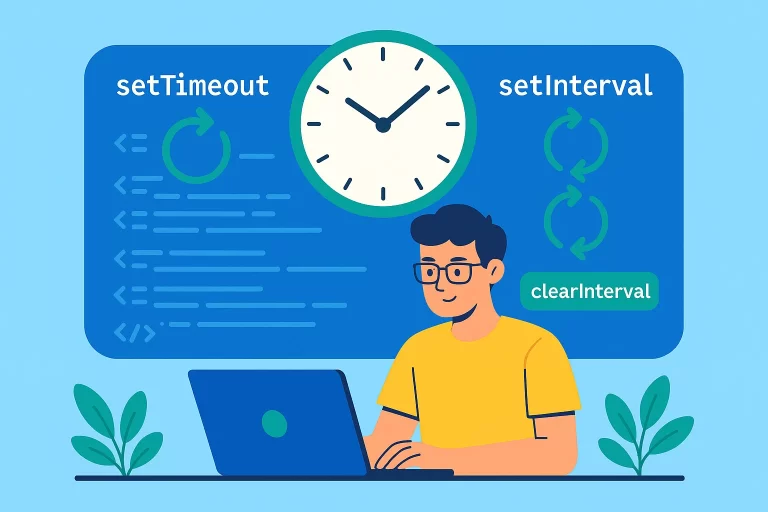
How will you handle timer based events in JavaScript?
Introduction to Timer-Based Events
JavaScript provides two primary methods for handling timer-based events: setTimeout and setInterval. Both are part of the global window object, allowing you to schedule code execution after a specified delay or at regular intervals.
Key Point: setTimeout executes a function once after a specified delay, while setInterval repeatedly executes a function at specified intervals until stopped.
Using setTimeout
The setTimeout method schedules a function to run once after a given delay (in milliseconds). It accepts a function (named or anonymous) and a delay as parameters.
setTimeout Example
// HTML: <h1 id="action">Waiting...</h1> <button onclick="tryTimer()">Start Timer</button>
function tryTimer() {
    setTimeout(() => {
        document.getElementById('action').innerHTML = 'Timed Out!';
    }, 2000); // 2-second delay
}
This code changes the text of an h1 element after a 2-second delay when the button is clicked.
Using Anonymous and Arrow Functions
You can use an anonymous function or an arrow function directly in setTimeout for concise code.
// Anonymous function
setTimeout(function() {
    document.getElementById('action').innerHTML = 'Timed Out!';
}, 2000);

// Arrow function
setTimeout(() => {
    document.getElementById('action').innerHTML = 'Timed Out!';
}, 2000);
Using setInterval
The setInterval method repeatedly executes a function at specified intervals until stopped using clearInterval.
setInterval with Counter
// HTML: <h1 id="action">0</h1> <button onclick="tryTimer()">Start Timer</button>
let counter = 0;
let timerObject;

function tryTimer() {
    timerObject = setInterval(() => {
        document.getElementById('action').innerHTML = counter++;
    }, 1000); // 1-second interval
}
This code increments a counter every second, updating the h1 element.
Stopping a Timer with clearInterval
To stop a setInterval timer, use clearInterval with the reference to the interval returned by setInterval.
Stopping setInterval
// HTML: <h1 id="action">0</h1> <button onclick="tryTimer()">Start Timer</button> <button onclick="stopTimer()">Stop Timer</button>
let counter = 0;
let timerObject;

function tryTimer() {
    timerObject = setInterval(() => {
        document.getElementById('action').innerHTML = counter++;
    }, 1000); // 1-second interval
}

function stopTimer() {
    clearInterval(timerObject);
}
Clicking “Stop Timer” stops the counter by clearing the interval.
Creating a Digital Clock
Digital Clock Example
// HTML: <h1 id="action">Clock</h1> <button onclick="tryTimer()">Start Timer</button> <button onclick="stopTimer()">Stop Timer</button>
let timerObject;

function tryTimer() {
    timerObject = setInterval(() => {
        document.getElementById('action').innerHTML = new Date().toLocaleTimeString();
    }, 1000); // Update every second
}

function stopTimer() {
    clearInterval(timerObject);
}
This creates a digital clock that updates every second with the current time.
Window vs Document Context
Key Point: setTimeout, setInterval, and clearInterval are methods of the window object, not document, as they handle browser-level timing events.
Best Practices
- Use
setTimeoutfor one-time delayed tasks andsetIntervalfor repeated tasks. - Store
setIntervalreferences in variables to allow stopping withclearInterval. - Use arrow functions or anonymous functions for concise
setTimeoutandsetIntervalcalls when logic is simple. - Avoid omitting the interval reference if you need to stop the timer later.
- Test timer durations to ensure they match user expectations (e.g., 1000ms = 1 second).