How to Set Up Google Merchant Center for Shopify: Step-by-Step Guide
Setting up Google Merchant Center is a crucial step for any e-commerce business looking to leverage Google Shopping Ads and increase product visibility. At Addeb Solution, we understand that the technical setup process can seem daunting, which is why we’ve created this comprehensive guide to walk you through every step of connecting your Shopify store to Google Merchant Center.
What Is Google Merchant Center and Why Do You Need It?
Google Merchant Center serves as the essential bridge between your Shopify store and Google Ads. Think of it as Google’s central hub where all your product information is stored, organized, and made available for advertising purposes. This connection enables your products to appear in Google Shopping Ads and, as an added bonus, in organic search results when potential customers search for products like yours.
The beauty of using Shopify with Google Merchant Center is the seamless integration. Unlike complex manual setups, Shopify’s built-in compatibility makes the entire process straightforward and efficient, even for businesses new to e-commerce advertising.
The Complete Google Merchant Center Setup Process
Step 1: Create Your Merchant Center Account
Begin by navigating to your Google Ads account and selecting the shopping campaign option. Click on “Create Merchant Center account” to initiate the setup process.
You’ll need to provide several key pieces of information including your business name, which should match your official business registration, your business domain (your complete Shopify store URL), and your registered country (where your business is legally registered or where you hold citizenship if operating as a sole proprietor).
During this initial setup, you have the option to receive personalized email notifications from Google. While this is a personal preference, many businesses find it helpful to stay informed about account updates and issues.
Step 2: Access Your Merchant Center Dashboard
After creating your account, you’ll need to complete the setup by visiting google.com/retail. Sign in using the same Gmail account you used to create your Merchant Center account. Browser consistency is important here as it ensures smooth authentication and account recognition.
Once signed in, you’ll be directed to your Google Merchant Center dashboard. Click “Get Started” to begin the configuration process.
Step 3: Install the Google and YouTube App for Shopify
Google Merchant Center intelligently recognizes Shopify stores and will recommend installing the official Google and YouTube app from the Shopify App Store. This app is the key to creating a seamless connection between your store and Google’s advertising ecosystem.
Navigate to the Shopify App Store through the provided link and click “Install.” Make sure you’re logged into your Shopify store in the same browser to ensure proper authentication and connection.
Step 4: Connect Your Google Account
Within the Google and YouTube app, locate and click “Connect Google Account.” Select the Gmail account associated with your Google Ads account. This consistency across accounts is critical for proper tracking and campaign management.
After selecting your account, you’ll need to grant the necessary permissions by clicking “Allow.” These permissions enable the app to sync your product information and manage your advertising campaigns effectively.
Step 5: Configure Essential Settings
The next phase involves confirming several important settings. First, verify that you’ve added complete contact information to your Shopify store. This information is required by Google and should have been completed during your initial Shopify setup.
Next, you’ll connect your newly created Google Merchant Center account to your Shopify store. Click “Connect” to establish this crucial link.
Google requires phone verification for security purposes. Enter your phone number, receive the verification code via text message, and input the code to confirm your identity.
Step 6: Set Up Product Feed and Target Markets
Configure your product feed settings by selecting your target country and language. For businesses primarily targeting the United States, select “United States” as your country and “English” as your language. These settings determine where your products can appear in search results and shopping ads.
The app automatically imports your existing Shopify settings, including shipping configurations and checkout settings. This automation saves significant time and ensures consistency across platforms.
Step 7: Enable Conversion Tracking
Conversion tracking is absolutely essential for measuring the success of your shopping campaigns. This feature tracks when customers make purchases through your organic search listings or paid shopping ads, attributing each sale to its source.
Without proper conversion tracking, you have no way to determine if your advertising spend is generating a positive return on investment. The Google and YouTube app sets up conversion tracking automatically, distinguishing between organic sales and paid advertising sales. This data allows you to calculate your true profitability by comparing product costs, marketing expenses, and revenue generated.
Step 8: Complete Terms and Conditions
Review Google’s terms and conditions carefully. These terms outline your responsibilities as an advertiser and the rules governing product listings. Once you’ve read and understood the terms, check the box indicating your agreement and click “Complete Setup.”
The Critical Barcode Requirement
One of the most important aspects of Google Merchant Center approval is adding product barcodes (also known as GTINs or Global Trade Item Numbers). This requirement often surprises new advertisers, but it’s essential for passing Google’s review process.
Every product sold through Google Shopping Ads must have a valid barcode. These are the numerical codes accompanied by scannable bars that appear on virtually all manufactured products. You can find them on product packaging, tags, or labels.
How to Add Barcodes to Your Products
Navigate to “Manage Products” in your Shopify admin panel. For each product variant (different colors, sizes, etc.), you’ll need to enter the corresponding barcode in the designated field. This is crucial because different variants often have different barcodes.
Obtaining Barcodes for Dropshipping Products
For dropshipping businesses, obtaining barcodes can be challenging. While you could attempt to contact suppliers directly, language barriers and communication difficulties often make this approach frustrating and time-consuming.
The most reliable method is ordering each product variant to your location and manually recording the barcode from the physical product. While this requires upfront investment, it ensures accuracy and helps you pass Google’s review process on the first attempt.
What Happens Without Barcodes
If you don’t add barcodes to your products, Google’s review process will deny your application, preventing your shopping ads from going live. However, you can continue setting up your campaigns while waiting for products to arrive. Your ads will remain in draft status until you add the required barcodes and pass the review process.
Understanding the Review Process
After completing your setup and adding barcodes, Google will review your products. The review timeline varies significantly based on several factors including the number of products in your catalog, current review queue volume at Google, and the complexity of your product categories.
Review times can range from a few hours for single-product stores to one and a half weeks or more for catalogs with numerous products. During our work at Addeb Solution, we’ve seen a store with one product approved in just four hours, while another with nineteen products took a week and a half.
Monitoring Your Review Status
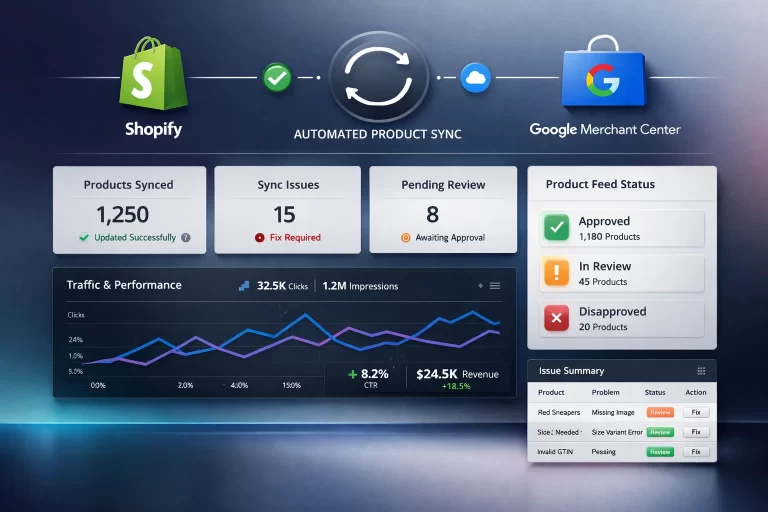
Your Google Merchant Center dashboard displays your product status clearly. Products under review will show a “pending” status. If Google identifies any issues with your product listings, you’ll receive notifications directly in your Merchant Center account.
When issues arise, look for the “Product Issues” section in your dashboard. Click on any flagged issues to see detailed explanations of what needs to be corrected. The interface typically includes a “Fix” button that directs you to the exact location requiring attention. After making corrections, your products will enter the review queue again.
Activating Free Product Listings
Before finalizing your setup, take advantage of Google’s free listings feature. Navigate to “Free Listings” in the left sidebar of your Merchant Center account and verify that it states “Your products can show in free listings across Google.”
This powerful feature allows your products to appear in organic Google search results without any advertising cost. It’s essentially free exposure that can drive additional traffic and sales to your store, making it an invaluable complement to your paid shopping campaigns.
Best Practices for Merchant Center Success
To maximize your success with Google Merchant Center, consider implementing these proven strategies from Addeb Solution:
Maintain Accurate Product Information: Ensure all product titles, descriptions, prices, and images are current and accurate. Discrepancies between your Merchant Center feed and actual website can lead to disapprovals.
Monitor Your Account Regularly: Check your Merchant Center dashboard frequently for notifications, warnings, or issues that require attention. Quick responses to problems prevent prolonged downtime.
Keep Products In Stock: Google penalizes accounts that advertise out-of-stock products. Update your inventory regularly to maintain account health.
Optimize Product Data: Use detailed, keyword-rich product titles and descriptions. The information you provide in Merchant Center directly impacts your ad relevance and ranking.
Common Setup Issues and Solutions
Even with careful setup, you may encounter challenges. Here are solutions to common problems:
Sync Delays: If your products don’t appear immediately after setup, wait several hours for the initial synchronization to complete. The system may take time to process your entire product catalog.
Verification Problems: If phone verification fails, ensure you’re using a valid mobile number that can receive SMS messages. Some VOIP numbers may not work.
Account Connection Errors: If accounts won’t link properly, ensure you’re using the same Gmail address across all platforms and that you’re logged in with that account in your browser.
Conclusion
Setting up Google Merchant Center is a fundamental step in launching successful Google Shopping campaigns. While the process involves several steps and critical requirements like product barcodes, following this systematic approach ensures a smooth setup experience.
At Addeb Solution, we’ve guided numerous businesses through this process, and we understand the challenges you might face. The key is patience during the review process and attention to detail when adding product information and barcodes.
Once your Merchant Center account is approved and your products are live, you’ll have access to one of the most powerful e-commerce advertising platforms available. Your products will appear in both paid shopping ads and organic search results, dramatically increasing your visibility and sales potential.
Remember that Google Merchant Center isn’t a one-time setup. Ongoing management, optimization, and monitoring are essential for maintaining account health and maximizing your advertising performance. Stay proactive, address issues promptly, and continuously refine your product data for the best results.