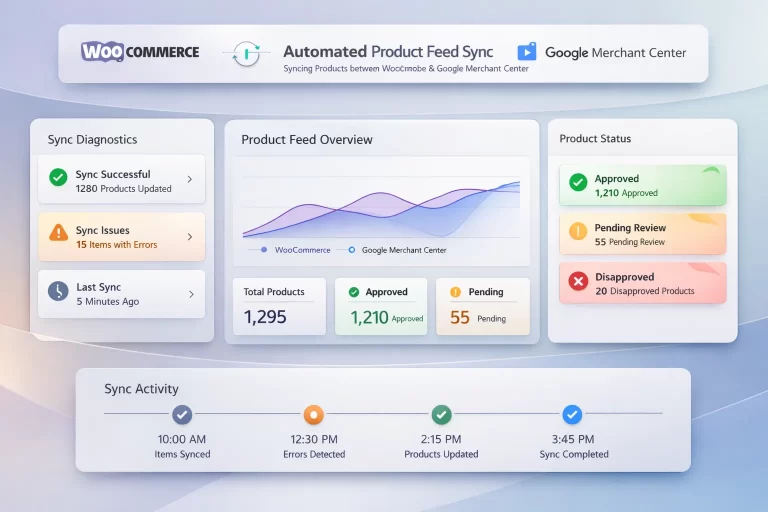
Google Merchant Center Setup for WooCommerce: Complete Integration Guide
If you’re running a WooCommerce store and want to tap into the power of Google Shopping Ads, setting up Google Merchant Center is your essential first step. At Addeb Solution, we’ve helped countless WooCommerce businesses streamline this integration process to unlock powerful advertising opportunities and organic search visibility. This comprehensive guide walks you through every step of connecting your WooCommerce store to Google Merchant Center.
Understanding the Google Merchant Center Connection
Google Merchant Center acts as the crucial intermediary between your WooCommerce store and Google Ads. It serves as a centralized repository where all your product information is uploaded, organized, and then transmitted to Google Ads. This connection enables two powerful benefits: your products can appear in paid Google Shopping Ads, and they gain visibility in organic Google search results for product-related queries.
If you already have an active Google Merchant Center account connected to your Google Ads, you can skip this setup process. However, if you’re starting fresh or need to connect a new WooCommerce store, this guide will ensure a smooth, error-free integration.
Initial Account Creation and Setup
Creating Your Merchant Center Account
Begin by navigating to your Google Ads dashboard and scrolling down to find the “Create Merchant Center account” option. Click this button to initiate the account creation process.
You’ll need to provide your business name, which should match your store name exactly. For consistency and brand recognition, use the same name that appears on your website. Next, enter your business domain—this is simply the complete URL of your WooCommerce store. Copy the URL directly from your browser’s address bar to ensure accuracy.
The registered country field requires you to specify where your business is legally registered. If you’re operating as a sole proprietor without formal business registration, use your country of citizenship. While Google offers personalized email notifications, many businesses prefer to uncheck this option to avoid unnecessary inbox clutter.
After entering all required information, click “Create and Link Account” to establish your Merchant Center presence.
Accessing Your Merchant Center Dashboard
Once your account is created, visit google.com/retail to access your Merchant Center dashboard. This link will be provided in your resources for easy access. Click “Sign in” and then select “Sign in to Merchant Center.”
Critical step: Ensure you’re signed in with the same Gmail account you use for Google Ads. Account synchronization requires matching credentials across all platforms. If you’re not using the correct Gmail account, sign out and log in with the appropriate one before proceeding.
After successful login, you’ll see a “Welcome to Merchant Center” page. If you don’t see this welcome screen, it indicates you’re logged in with the wrong Gmail account. Click “Get Started” to begin the configuration process.
Installing the Google Listings and Ads Plugin
Google Merchant Center intelligently detects that your domain is hosted on WooCommerce and will automatically recommend the Google Listings and Ads plugin. This official plugin creates a seamless connection between your store and Google’s advertising ecosystem.
Pre-Installation Checklist
Before clicking the plugin installation link, ensure you have your WooCommerce website open in another browser tab and that you’re logged into the WordPress admin dashboard with backend access. This preparation ensures smooth navigation during the installation process.
Plugin Installation Process
Click on the “Go to the Google Listings and Ads plugin” button. The system will redirect you directly to your WordPress plugins page with the search already performed for “Google listings.”
Locate “Google Listings and Ads” in the search results and click “Install Now.” Once installation completes, immediately click “Activate” to enable the plugin.
After activation, refresh your WordPress admin page to make the new plugin visible in your navigation menu. Navigate to Marketing in the left sidebar, then scroll down to find “Google Listings and Ads.” Note that without refreshing the page first, this menu option won’t appear.
Click on “Google Listings and Ads,” then select “Start Listing Products” to begin the configuration process.
Connecting Required Accounts
WordPress.com Account Connection
The Google Listings and Ads plugin requires a WordPress.com account to function properly. If you already have an account, you can connect it immediately. If not, take a few minutes to create one—the process is quick and straightforward, and it’s necessary for the plugin to establish the connection between your store and Google Merchant Center.
Google Account Integration
Next, you’ll connect your Google account. During the connection process, you’ll see a permissions screen requesting access to various Google services. This is a critical step: click “Select All” to grant WooCommerce full access to your Google account. This comprehensive permission set is necessary for proper synchronization between your store, Merchant Center, and Google Ads.
After selecting all permissions, click “Continue” to proceed.
Linking Your Merchant Center Account
In the Google Merchant Center section, your newly created Merchant Center account should appear automatically. Click “Connect” to establish the link. Once the connection is successful, the status will change to “Connected.” Click “Continue” to move to the configuration settings.
Configuring Store Settings and Requirements
Language and Location Settings
Set your primary language—most stores serving English-speaking markets will select “English.” The location setting determines where you’ll be shipping products. If you’re primarily targeting the United States, select “United States” from the dropdown menu.
Important consideration: If you select “All countries,” ensure your WooCommerce shipping settings support international shipping. Mismatches between your Merchant Center settings and actual shipping capabilities will result in disapproval during Google’s review process.
Shipping Rate Configuration
If you’ve already configured shipping rates in your WooCommerce settings, select the “Recommended” option. This automatically syncs your existing shipping rates to Google Merchant Center, eliminating duplicate data entry and ensuring consistency across platforms.
Shipping Time Estimation
Shipping times are displayed in both organic product listings and shopping ads, making accurate estimates crucial for customer satisfaction and ad performance. Calculate your average shipping time from order placement to customer delivery.
For example, if you’re targeting the United States and your typical delivery time is seven days, enter “7 days” in the shipping time field. This transparency helps set proper customer expectations and can improve conversion rates.
Tax Rate Setup
Tax configuration should already be completed in your WooCommerce settings. If your store uses destination-based tax rates (where tax is calculated based on the customer’s location), select “My store uses destination-based tax rates.”
This is the standard approach for US-based stores, as different states have different sales tax rates. For international stores, this system accommodates varying VAT rates across different countries.
After configuring all settings, click “Continue” to proceed.
Contact Verification and Pre-Launch Requirements
Phone Number Verification
Google requires phone number verification for security and account authenticity. Enter your phone number in the designated field. You’ll receive a text message with a verification code. Enter this code to confirm your identity and proceed.
Pre-Launch Checklist Compliance
Google’s pre-launch checklist ensures your store meets minimum quality standards before allowing product listings. Review each requirement carefully:
Store Accessibility: Confirm your store is live and accessible to all users without login requirements or restrictions.
Complete Checkout Process: Verify that customers can complete purchases from product selection through payment confirmation.
Secure Checkout: WooCommerce provides SSL security by default, so this requirement is typically met automatically.
Policy Visibility: Ensure your refund policy and terms of service are clearly visible on your website, typically in the footer or on dedicated policy pages.
Contact Information Display: Confirm your store’s phone number, email address, or physical address is visible on your website, usually on the contact page or in your terms of service.
After verifying all requirements, check the confirmation box and click “Continue.”
Product Upload and Google Ads Account Verification
The next screen confirms that your product listings are ready for upload. The system begins uploading your products automatically—no manual intervention is required.
Before finalizing, verify that the correct Google Ads account is connected. The system displays the last four digits of your Google Ads account number. Compare these digits with those shown in the upper right corner of your Google Ads dashboard. If they match, you’ve successfully connected the correct account.
If you’re not ready to configure your shopping campaigns immediately, click “Skip this step for now” to complete the basic setup. You can always return later to create your campaigns.
Understanding the Review Process
After completing setup, return to your Google Merchant Center dashboard. If you don’t see updated product status information, refresh the page. Your products should appear with an “Under Review” status.
Review Timeline Expectations
The review process duration varies significantly based on several factors including the number of products in your catalog, current review queue volume at Google Merchant Center, and the complexity of your product categories.
At Addeb Solution, we’ve observed review times ranging from four hours for single-product stores to one and a half weeks for catalogs with 19 or more products. Patience is essential during this phase—the wait is unavoidable, but your products will be reviewed systematically.
Monitoring Review Status and Addressing Issues
Google Merchant Center notifications appear in the upper left corner of your dashboard. When issues arise, you’ll see alerts such as “Product Issue” with a “Fix Issues” button.
Your products will not be approved until all issues are resolved. Click “Fix Issues” to see detailed explanations of what needs correction.
Resolving Common Product Issues
The Barcode Requirement
One of the most common disapproval reasons is missing product identifiers, specifically barcodes (also known as GTIN, UPC, or EAN codes). Google requires these unique identifiers to verify product authenticity and prevent counterfeit listings.
When you see the “Limited performance due to missing identifiers (GTIN, MPN, Brand)” message, follow these steps:
Click “Fix” next to the product with the issue. Navigate to “Product Details” on the left sidebar. Click “Edit Product” and scroll down to “Product Identifiers.” Enter the barcode in the designated field and click “Save.”
Understanding Barcodes
Every manufactured product has a unique barcode—those black and white parallel lines with numbers underneath that you see on product packaging. This code serves as a global identifier for your specific product.
To obtain barcodes for your products, check your supplier documentation, examine physical product packaging, or contact your manufacturer directly. For dropshipping businesses, ordering sample products to your location is often the most reliable way to obtain accurate barcodes.
Continuing During Review
Even while your products are under review, you can continue building your shopping campaign ads. These campaigns won’t go live until your products receive approval, but having them ready ensures immediate launch once approval is granted. This allows you to maintain momentum and avoid delays in your advertising strategy.
Best Practices for WooCommerce Merchant Center Success
To maximize your success with Google Merchant Center, implement these strategies from Addeb Solution:
Maintain Data Accuracy: Ensure product information in WooCommerce matches exactly what appears in Merchant Center. Discrepancies lead to disapprovals and performance issues.
Regular Inventory Updates: Keep your inventory status current. Advertising out-of-stock products violates Google’s policies and damages account health.
Optimize Product Data: Create detailed, keyword-rich product titles and descriptions in WooCommerce. This information directly impacts your ad relevance and search visibility.
Monitor Notifications Daily: Check your Merchant Center dashboard regularly for alerts, warnings, or policy violations. Quick responses prevent prolonged issues.
Complete All Product Fields: Fill in every available product attribute in WooCommerce. More complete data improves ad quality and relevance scores.
Troubleshooting Common Setup Issues
Even with careful setup, you may encounter challenges. Here are solutions to frequent problems:
Plugin Not Appearing: If the Google Listings and Ads option doesn’t appear in your Marketing menu after installation, refresh your WordPress admin page completely or clear your browser cache.
Account Connection Failures: Ensure you’re using the same Gmail account across Google Ads, Merchant Center, and the plugin connection. Mixed accounts are the most common cause of connection failures.
Shipping Setting Conflicts: If shipping errors occur, verify your WooCommerce shipping zones and methods are configured correctly before syncing to Merchant Center.
Product Upload Delays: Initial product uploads can take several hours. If products don’t appear after 24 hours, check your WooCommerce product visibility settings and ensure products are published, not in draft status.
Conclusion
Setting up Google Merchant Center for your WooCommerce store is a foundational step in building successful Google Shopping campaigns. While the process involves multiple steps and requires attention to detail, following this systematic approach ensures proper configuration and sets your store up for advertising success.
At Addeb Solution, we understand that technical integrations can be challenging, especially when you’re focused on running your business. The key to success is thoroughness during setup and patience during the review process. Once your products are approved and live, you’ll have access to one of the most powerful e-commerce advertising platforms available.
Remember that Google Merchant Center requires ongoing management. Regular monitoring, prompt issue resolution, and continuous product data optimization are essential for maintaining account health and maximizing your advertising performance. Stay proactive, keep your product information accurate and complete, and address any notifications immediately to ensure uninterrupted advertising capabilities.
Your WooCommerce store is now connected to the vast potential of Google’s advertising ecosystem. With products appearing in both paid shopping ads and organic search results, you’re positioned to significantly increase your store’s visibility and drive substantial sales growth.