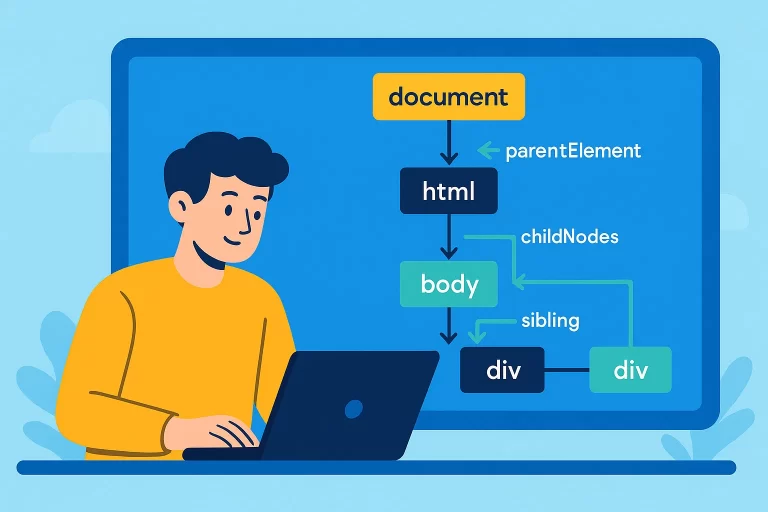
DOM Navigation in JavaScript: Complete Guide
Introduction to DOM Navigation
DOM navigation involves traversing the Document Object Model (DOM) tree to access and manipulate elements programmatically. The document object serves as the entry point, and various properties allow navigation to children, siblings, and parent nodes.
Key Point: The DOM tree consists of nodes, including elements, text nodes, and others. Properties like childNodes, children, and parentNode enable navigation through the tree.
Understanding the DOM Tree
The DOM tree represents HTML as a hierarchy of nodes, with document.documentElement (the html element) as the top node under document. Nodes include elements (e.g., div, ul) and text nodes (e.g., whitespace or newlines).
Sample DOM Structure
<!-- HTML -->
<body>
    <div id="div1">
        <h1>First Division</h1>
        <ul>
            <li>Item 1</li>
            <li>Item 2</li>
        </ul>
    </div>
    <div>
        <h1>Second Division</h1>
        <input type="text">
        <button onclick="navigateDOM()">Navigate</button>
    </div>
</body>

function navigateDOM() {
    console.log(document.documentElement); // Outputs <html> element
    console.log(document.head); // Outputs <head> element
    console.log(document.body); // Outputs <body> element
}
This logs the html, head, and body elements, showing top-level DOM access.
Navigating Child Nodes
The childNodes property returns all nodes (elements, text nodes, etc.), while children returns only element nodes. Text nodes include whitespace and newlines, which can affect navigation.
Child Nodes vs Children
<!-- HTML -->
<body>
    <div id="div1"><h1>First Division</h1></div>
    <div><input type="text"><button onclick="navigateDOM()">Navigate</button></div>
</body>

function navigateDOM() {
    console.log(document.body.childNodes); // Includes text nodes
    console.log(document.body.childNodes.length); // Outputs node count
    console.log(document.body.children); // Only element nodes
}
childNodes includes text nodes (e.g., newlines), while children only includes div elements.
First and Last Child
Properties like firstChild, lastChild, firstElementChild, and lastElementChild allow access to the first or last child nodes or elements.
First and Last Child Navigation
<!-- HTML -->
<div id="div1">
    <h1>First Division</h1>
    <ul><li>Item 1</li><li>Item 2</li></ul>
</div>
<button onclick="navigateDOM()">Navigate</button>

function navigateDOM() {
    const div1 = document.getElementById('div1');
    console.log(div1.firstChild); // Text node (newline)
    console.log(div1.firstElementChild); // <h1> element
    console.log(div1.lastElementChild); // <ul> element
}
firstChild may return a text node, while firstElementChild and lastElementChild return proper elements.
Sibling and Parent Navigation
Properties like nextSibling, nextElementSibling, previousSibling, previousElementSibling, parentNode, and parentElement enable navigation to sibling and parent nodes.
Sibling and Parent Navigation
<!-- HTML -->
<body>
    <div id="div1"><h1>First Division</h1></div>
    <div id="div2"><input type="text"><button onclick="navigateDOM()">Navigate</button></div>
</body>

function navigateDOM() {
    const div1 = document.getElementById('div1');
    console.log(div1.nextSibling); // Text node (newline)
    console.log(div1.nextElementSibling); // <div id="div2">
    console.log(div1.parentElement); // <body>
}
This logs the next sibling (including text nodes), the next element sibling, and the parent element.
Node Types
Common DOM Node Types
| Node Type | Value | Description |
|---|---|---|
| Element | 1 | HTML elements like div, h1 |
| Text | 3 | Text content, including whitespace |
| Document | 9 | The document object |
Best Practices
- Use
childreninstead ofchildNodeswhen only element nodes are needed. - Use
firstElementChildandlastElementChildto avoid text nodes. - Check
nodeTypeornodeNameto identify node characteristics. - Minimize whitespace in HTML to reduce unexpected text nodes.
- Test navigation logic to ensure correct node access in complex DOM structures.